Thinking of this, I decided I better back up my own files. Today I started with Embroidery Library. Why? Because it seemed like a good idea at the time.
Here’s the rub my mum is feeling: She started using Embroidery Library in 2009. It’s 2015. That’s a heck of a lot of embroidery files. Embroider all of the things!
Don’t know about Embroidery Library? They have free designs every month! Hustle over! (There’s a nice and easy “Free Designs” tab to get you started. I also recommend joining their Birthday and Christmas clubs because that’s just more great goodies. Also, each month you spend money on a purchase, they enter you into their VIP service. The next month there’s VIP goodies. Woot for that! The last added benefit is that they constantly send out coupon codes for items on your wishlist, $5 off a $10 order, and etc.
If you want project ideas, they even have that. It’s truly a great resource.
Step 1: Log in and go to your “Order History”.
After logging into your account on Embroidery Library, you can click the last tab on the right for “Order History”. Chances are you have a lot of orders thanks to their monthly freebies. Look at all those orders, but never fear, this can be done!
Step 2: Convert all of your designs to the same format (Optional).
This is a step that is important if you’ve changed machines. I did. Most of my orders were .sew format for my Janome. Now I’m a Babylock girl so I need .pes. What to do with my tons of .sew files? EEEK!
If you simply click on any order, at the bottom of the page you will see some options, including the option to convert the order’s file type. Trust me on this, it’s easy. Click that and you can select to change only that one order or all of your orders! Boom! That is it! Suddenly, five years of orders are all in the same format! HUZZAH! Now simply return to your Order History.
Step 3: Choose the 1-Click Download option.
It can’t get much easier than this people. You download a folder straight to your computer. It’s named for the order number, which can be confusing. Inside you find a .jpg of the design so you can see what the design is and the design itself. There is also .pdf of the design page complete with thread list, measurements, name, and how many stitches comprise the design. The added benefit is now you know what the design is because the files are named for the product number, not the design itself.
Keep rolling with the 1-Click Download option until complete.
Step 4: Organize
Now, organizing is a personal preference. I love organizing and all these “L189.pes” is useless to me. Great for my sewing machine, sure, but not for me.
Open an order folder and you now have two options. Use the .PDF or use your order page. I opted for the order page. I split screen my computer between the Embroidery Library order page for each order and my file manager. I could easily see on my order page the name of each design as well as the product number.
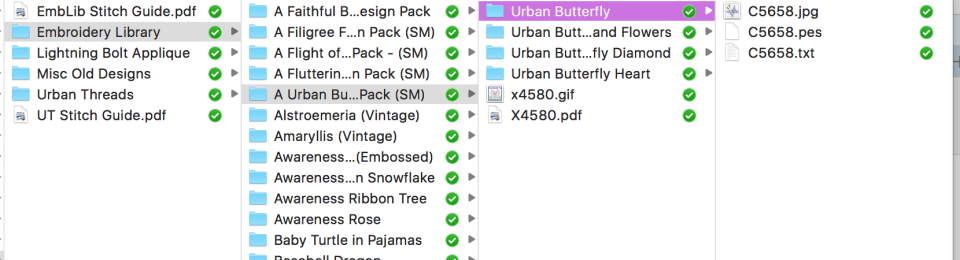
I created a folder for each design and moved its files into that folder. Since I have multiple sizes of some designs, that sometimes meant multiple sizes. You could then subfolder for sizes if you wanted, or not.
Owning several design packs, I sub-foldered this. The Pack holds its name and then a folder inside for each design.
A screenshot to help you visualize!
From here you can decide what to do with your designs. Keep them all nice and alphabetical? Sort by site? Sort by event/theme? Slide those folders where they need to go and you are done!
As you can see, I’ve created a PDF of files from Embroidery Library. I’m looking at the best way to keep a “book” of what I own for easy reviewing when I sit down to start a project. Seeking ideas on what you do for this!
What are your favorite ways to organize your digital media? I’d love to hear in the comments!
–Lady O
 Lady Ozma's Journey
Pingback: A Peck of Crated Peppers | rarasaur
I’m so glad I read this! I’m usually pretty leary of “updates” & I keep getting prompted to go to “10” but I’ve paid no attention. I never considered the emb software might not after! Eck!
Thanks for sharing!
LikeLike
You are welcome! This is one of those, “No way am I going to let anyone else run in to this problem!” It stinks!
LikeLiked by 1 person